Showing posts with label batteries. Show all posts

iPhone 17: Annoyances and Real Improvements

Apple has long been the gold standard of smartphone innovation, but with the upcoming release of the iPhone 17, a growing number of loyal customers are asking the same question: Is anyone else annoyed besides me? From price hikes to incremental updates, the frustration is palpable across tech forums, social media, and even among long-time Apple enthusiasts. While the iPhone remains one of the most powerful and polished devices on the market, the balance between innovation and annoyance has started to tip in the wrong direction for many.

This article dives deep into the top annoyances with the iPhone 17—from design choices and pricing strategies to feature rollouts and ecosystem lock-ins—while also weighing the genuine improvements Apple has made.

Identifying Dropped Call Locations

Coverage map in the mountains

Dropped calls remain one of the most frustrating issues for mobile phone users. Despite advancements in 4G LTE and 5G networks, many people still experience calls cutting out unexpectedly. For consumers, this is an inconvenience. For businesses and emergency services, it can be critical. Identifying where dropped calls happen most often helps carriers improve coverage, assists regulators in monitoring service quality, and empowers users to make informed choices about their providers. This article explores how dropped call locations are identified, the tools used to track them, why they occur, and the implications for both customers and carriers.

What Is a Dropped Call?

How to Extend iPhone Battery Life & Signal

signal booster

Your iPhone is one of the most important tools you use every day, but nothing is more frustrating than running out of battery or losing signal when you need it most. While Apple continuously improves hardware and software, users can still face challenges with battery drain and weak reception. The good news is that there are many practical strategies to extend your iPhone’s battery life and improve its signal strength. This article covers the best methods, from built-in settings to lifestyle changes and accessories, so you can get the most out of your device.

Why Battery Life and Signal Go Hand-in-Hand

Most people don’t realize that poor reception can directly impact battery life. When your iPhone struggles to maintain a cellular signal, it uses more power to stay connected to the network. Similarly, background processes, app refreshes, and constant notifications can drain the battery unnecessarily. Understanding this relationship helps explain why optimizing both battery life and signal strength leads to better performance overall.

1. Adjust Screen Brightness and Display Settings

The iPhone’s display is one of the biggest battery consumers. Lowering brightness or enabling auto-brightness can save significant energy. You can also enable Dark Mode, which reduces power consumption on OLED screens by using darker pixels. Reducing the auto-lock time ensures your screen doesn’t stay on longer than necessary. Small tweaks to display settings can extend daily usage without affecting your experience.

2. Manage Background App Refresh

Background App Refresh allows apps to update content even when you’re not using them, but it consumes both data and power. Go to Settings > General > Background App Refresh and turn it off completely or restrict it to Wi-Fi only. Limiting this feature prevents unnecessary updates, preserves battery life, and reduces background signal usage.

3. Use Low Power Mode

Apple’s built-in Low Power Mode is designed to extend battery life when your charge drops below 20%, but you can activate it anytime for better efficiency. This feature reduces background activity, mail fetch, automatic downloads, and some visual effects. For people on the go, keeping Low Power Mode on during travel days or long commutes can make a noticeable difference in how long the phone lasts.

4. Update iOS Regularly

Each iOS update often includes performance and efficiency improvements. Outdated software may drain battery faster or handle signals less efficiently. Always keep your iPhone updated to the latest version of iOS. You can enable automatic updates under Settings > General > Software Update. Staying current ensures you benefit from Apple’s battery optimizations and bug fixes.

5. Turn Off Location Services When Not Needed

Location tracking is another heavy drain on your iPhone. Many apps request location access even when it’s unnecessary. Go to Settings > Privacy > Location Services and review which apps have access. Set most apps to “While Using” instead of “Always” to prevent constant GPS usage. This adjustment saves power while maintaining functionality for apps that truly need location data.

6. Limit Push Notifications

Push notifications keep you connected, but they also force your iPhone to wake up frequently, draining battery and requiring network access. Disable unnecessary notifications in Settings > Notifications. Grouping notifications and limiting them to essentials like messaging and calendar alerts can reduce interruptions, save power, and improve signal efficiency.

7. Switch Between Wi-Fi and Cellular Strategically

Your iPhone often uses more power when searching for cellular signals in weak coverage areas. If Wi-Fi is available, connect to it, as it consumes less battery. Conversely, if the Wi-Fi connection is poor, turning it off prevents your phone from constantly switching between Wi-Fi and cellular. Being mindful of when to use each connection helps extend both battery life and signal stability.

8. Optimize Signal Strength

Signal strength plays a major role in both connectivity and battery performance. If you’re in an area with weak reception, your iPhone works harder to stay connected. To improve signal:

  • Move closer to a window or higher floor in a building.

  • Avoid thick walls, elevators, or basements that block signals.

  • Use Wi-Fi calling when cellular strength is low.

  • Consider a signal booster if you live in an area with consistently poor reception.
    By improving reception, you reduce the workload on your iPhone and conserve battery power.

9. Disable Unnecessary Wireless Features

Features like Bluetooth, AirDrop, and Hotspot are convenient but consume energy even when not in use. Turn them off from Control Center when you don’t need them. Similarly, AirPlay scanning and background Wi-Fi activity can drain battery if left running. Minimizing unused wireless functions helps your iPhone run more efficiently.

10. Manage App Usage and Close High-Drain Apps

Some apps are notorious for consuming battery, especially social media and streaming platforms. You can check battery usage in Settings > Battery to identify which apps are using the most power. Closing high-drain apps or limiting their screen time helps conserve energy. For navigation apps that require constant GPS, consider downloading offline maps to reduce both data and battery drain.

11. Enable Airplane Mode in Dead Zones

When you’re in an area with no service, your iPhone continuously searches for a signal, which quickly drains the battery. Turning on Airplane Mode prevents this constant searching. You can still enable Wi-Fi or Bluetooth manually if needed. This tip is particularly useful during flights, rural travel, or underground commutes where signal is unreliable.

12. Use Optimized Battery Charging

Apple’s Optimized Battery Charging feature extends battery health over the long term. Found in Settings > Battery > Battery Health & Charging, this feature learns your charging routine and reduces wear by limiting charge beyond 80% until you need it. Maintaining long-term battery health ensures your iPhone continues to hold a strong charge for years.

13. Invest in Accessories for Better Performance

Sometimes hardware solutions are the best answer. A portable power bank can keep your iPhone charged during long days without outlets. External signal boosters or case-integrated antennas can help in low-coverage areas. Quality charging cables and adapters ensure efficient charging, which reduces battery stress over time. While accessories cost extra, they provide reliable solutions for extending both battery and signal.

14. Restart Regularly and Reset Settings if Needed

Restarting your iPhone once a week clears memory, closes lingering processes, and refreshes connections. If you experience persistent signal or battery issues, resetting network settings can help. Go to Settings > General > Reset > Reset Network Settings to clear outdated connections. This often improves both connectivity and efficiency without erasing personal data.

Common Mistakes to Avoid

Many users unintentionally reduce battery life and signal quality. Avoid overcharging your iPhone overnight, as constant high-voltage charging generates heat. Don’t use cheap charging accessories, which can damage the battery. Similarly, avoid placing your phone in tight pockets or bags with metal objects, as this can weaken signal reception. By steering clear of these mistakes, you prolong both performance and device health.

Conclusion

Extending your iPhone’s battery life and improving signal strength is possible with a mix of smart settings adjustments, mindful usage, and occasional hardware support. From managing background activity and optimizing display brightness to improving signal with boosters or Wi-Fi calling, small changes add up to big improvements. By following these strategies, you can enjoy a longer-lasting iPhone that keeps you connected when it matters most. A well-optimized device not only saves time and frustration but also extends the overall lifespan of your phone, ensuring it remains a dependable companion in your daily life.

MacBook Pro: The Plague of Terrible Battery Life

The MacBook Pro, long heralded as the gold standard for laptops in the tech world, is facing a crisis that has left many users frustrated and disillusioned: terrible battery life. Despite its sleek design, powerful hardware, and advanced features, the MacBook Pro's battery woes are tarnishing its once sterling reputation. This article delves into the issues surrounding the MacBook Pro's battery life, exploring the causes, user experiences, and potential solutions.

Can Power Outage Damage Your PC? Understanding the Risks and Precautions

Power outages are an unfortunate reality that can occur due to various reasons, such as severe weather conditions, equipment failures, or grid overloads. While they are an inconvenience for everyone, they can also pose a potential threat to electronic devices, including personal computers (PCs). In this article, we will explore the risks associated with power outages and how they can potentially damage your PC. We will also discuss essential precautions you can take to safeguard your computer during these situations.

Verizon Wireless Plans and Coverage Review

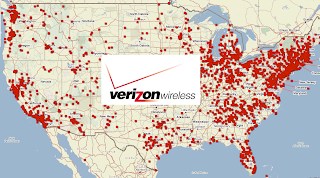
Verizon Wireless is one of the largest wireless service providers in the United States, offering a wide range of mobile plans and extensive coverage across the country. Here is a review of Verizon Wireless plans and coverage:

Coverage: Verizon Wireless has a reputation for providing excellent coverage nationwide. Their network coverage extends to both urban areas and rural regions, making it a popular choice for customers who value reliable connectivity in various locations. Verizon operates on a combination of 3G, 4G LTE, and 5G networks, with 5G being the latest generation of wireless technology. The coverage and speeds offered by Verizon's networks have generally been highly regarded and widely available.

5G Network: Verizon Wireless has been at the forefront of 5G network deployment. They offer 5G coverage in select cities and continue to expand their 5G network across the country. It's important to note that 5G coverage may vary depending on your location and device compatibility.

Verizon 5G Nationwide utilizes low-band frequencies (sub-6 GHz) to provide broader coverage across the country. This type of 5G offers improved speeds and capacity compared to 4G LTE but may not deliver the ultra-fast speeds associated with higher-frequency bands. Verizon's 5G Nationwide network aims to provide a foundation of coverage, particularly in suburban and rural areas.

Verizon's LTE network covers over 99% of the US population. Verizon's 4G LTE network covers 71% of the US, making it the number one carrier in the nation. Verizon offers 5G access in 12.77% of the country. You can find Verizon's 5G Ultra Wideband network in parts of many major cities, including Los Angeles, Denver, Phoenix, Dallas, Houston, Chicago, Boston, New York, Atlanta, Miami, and Philadelphia.

Verizon 5G Ultra Wideband, on the other hand, operates on high-frequency mmWave bands. This technology provides extremely high speeds and low latency, making it ideal for densely populated urban areas. However, the mmWave signals have a limited range and can be easily blocked by obstacles like buildings or even foliage.

Verizon has been actively expanding its 5G Ultra Wideband coverage in select cities, focusing on high-traffic areas such as stadiums, airports, and downtown areas. This allows users in these locations to experience the full potential of ultra-fast 5G speeds.

Plan Options: Verizon Wireless offers a diverse selection of plans to suit different needs. They provide both postpaid (contract) and prepaid options. Their plans typically include unlimited talk and text, and data allowances vary depending on the plan. Customers can choose from plans with different data caps or go for unlimited data options.  In rural or remote areas, Verizon's coverage is generally more extensive compared to other carriers. 

Unlimited Plans: Verizon Wireless offers several unlimited plans that provide unlimited data usage. These plans may have different speed tiers, with the highest speeds available on the premium unlimited plan. It's worth noting that after a certain threshold of data usage (usually around 22GB per month), speeds may be temporarily reduced during times of network congestion.

Shared Data Plans: Verizon Wireless also offers shared data plans, where multiple lines share a pool of data. This can be a cost-effective option for families or individuals with multiple devices.

Device Selection: Verizon Wireless provides a wide range of smartphones and other devices for purchase, including popular flagship devices and budget-friendly options. They also support Bring Your Own Device (BYOD) programs, allowing customers to use their own compatible devices on the network.

Customer Service: Verizon Wireless has a reputation for good customer service and offers multiple channels for support, including online chat, phone support, and in-store assistance.

The cost of Verizon Wireless plans tends to be relatively higher compared to some other wireless service providers. However, the extensive coverage, reliable network, and available plan features make it an attractive option for customers who prioritize connectivity and need reliable service in various locations.

Plans:   Compare Verizon shared data plans. 

Finding the best cell phone coverage just got easier by comparing cell phone coverage reports from other customers. Which wireless carrier has the worst cell phone coverage?

Other Reviews:
Feedback is always welcome. Please submit your comments below.

@VZWSupport Twitter Chatter

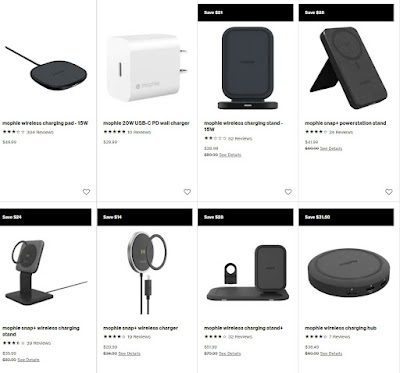
Buy a Mophie Snap+ Wireless Charger Now & Get 40% Off at Verizon Wireless Store

40% off mophie wireless chargers

Is your phone wireless charging compatible? What phones are wireless friendly?

Juice Pack and Powerstation+

Mophie also makes two other wireless chargers that are worth checking out: the Juice Pack and Powerstation+. Both come in multiple colors and have a protective case that doubles as a wireless charger. They’re compatible with most modern smartphones, so you can use them for your iPhone or Android device alike.

You won’t believe how fast these chargers work! The Juice Pack provides 5-watts of power through its proprietary MagSafe magnetic connector, meaning it will charge your device up to six times faster than traditional charging methods. The Powerstation+ is even more impressive at 10 watts of output per hour (5 volts @ 2 amps). This means you can fully charge an iPhone XS Max in just two hours instead of three!

7.5- and 10-watt fast charging

The Snap+ Wireless Chargers come in two versions: the 7.5-watt model, which has a smaller surface area and takes around 4 hours to fully charge an iPhone 8 (or about half that for an iPhone XS), and the 10-watt model with a larger surface area that will fully charge an iPhone 8 in three hours or less.

If you're not sure which one will work best for your needs, start by considering how much time you have before your next appointment or event. If it's only half an hour and there are no outlets nearby, go with the 7.5-watt charger—it'll be much faster than charging from your phone's built-in port. Alternatively, if it's just as easy for you to set up camp at Starbucks as it is for you to find another outlet somewhere else, then choose the 10-watt model instead; even though it won't provide as much juice per minute of charging time as its smaller sibling does, it will get enough done much faster overall thanks to its larger charging surface area.

Non-slip rubberized surface

The Snap+ wireless charger features a non-slip rubberized surface that helps keep your phone in place while charging. The charger's surface is also easy to clean, so you can put it back on nightstands or desks without worrying about leaving germs behind.

The Snap+ is compatible with all Qi-enabled devices from Samsung, Apple, and others, making it perfect for people who have multiple phones in their homes.

Overcharging protection

Overcharging is dangerous because it can cause your battery to break down and fail. When a phone is overcharged, it can also be damaged by heat. Charging your phone too long or using an incompatible charger can result in overheating and even fire.

When you first use the Mophie charger, you should be sure to read through these instructions before using the product. It is important to note that there are many different types of charging cables for different phones, so if yours does not fit with the Snap+, then don't worry! You can find other compatible cables online or at a local electronics store like Best Buy or Walmart (to name just two). It's also good practice to check your device's manual before buying any new accessories; this way you'll know exactly what type of cable will work best with it!

Charges through cases up to 3mm thick

The Snap+ Wireless Charger from Mophie is a charging pad that can be used with or without a case. The Snap+ charger comes with an adapter, so it will work with the iPhone 7 and 7 Plus, but not the iPhone 8 or 8 Plus.

The Snap+ charges through cases up to 3mm thick. You can also charge through cases made of rubber, plastic, and TPU (thermoplastic polyurethane). It does not support Qi wireless charging receivers built into your case as well as metal cases due to the magnetic interference created by these materials.

Lowered price

If you're interested in lowering your smartphone-charging cost and are willing to invest in new tech, you're in luck. Mophie is offering 40% off its Snap+ Wireless Chargers for a limited time. The sale price applies to both the Magnetic Charging Dock and the Powerstation Wireless Portable Charger, so there's something for everyone whether they prefer wall or portable charging solutions.

The regular price of each product is $100; however, if you purchase one now through September 30th at 12:00 AM PT, you'll get it at just $60—a savings of $40 compared to their normal price!

The savings on this deal make it worth buying now rather than waiting until Black Friday or Cyber Monday when it could become even cheaper (and more likely sold out).

You can find all the info on this offer here: https://www.mophie.com/collections/wireless-chargers

Save big on Mophie wireless chargers today

Today, you can save big on Mophie wireless chargers. These chargers will not only charge your devices quickly, but they'll look great doing it!

There's nothing worse than having a dead battery and nowhere to plug in your phone. With these Mophie wireless chargers, you won't have that problem anymore. This deal is one of the hottest ways to get 40% off any Mophie charger today and save big on these stylish accessories for your home or office. 

What Phones Are Friendly With Wireless Chargers? Here is a list

wireless charger phone store

Starting at iPhone 8, X, XS, 10, 11, 12, 13

  • Wireless charging is a better option for your phone than plugging in with a cable all the time.

  • Wireless charging is great for people who do not want to charge their phone every night.

  • However, wireless charging is not as fast as cable charging.

The phones listed all have the same charging capability (Qi), but it's important to note that some phones may be able to charge faster than others depending on the charger used and whether or not you've updated your software on the device itself.  

Do IOS upgrades cause battery life issues?

Samsung Galaxy S6, S7, and S8

The Samsung Galaxy S9 and S9 Plus are the latest models to work with wireless chargers. This list includes the following:

  • Galaxy S6, S7 and S8 series

  • Galaxy Note 5 and later models

Samsung Note 5

You can use a wireless charging pad to charge your Samsung Note 5. It's a phone, it's a Samsung, and it's also a Note.

LG G4, G5, and G6

The G4, G5 and G6 are all compatible with wireless charging. However, you must purchase a specific type of charger for each device. The best way to ensure compatibility is to buy the charger from the brand itself. The LG-QC2 and LG-USBCVID can be used with any Qi-enabled phone and come in black or white.

Google Nexus 6 and 7

The Google Nexus 6 and 7 are two smartphones that were introduced in 2014 and released in two sizes. The Nexus 6 has a 6-inch screen, while the Nexus 7 has a 7-inch screen. Both of these devices are equipped with high-resolution screens and both have rear-facing cameras as well as front-facing ones. They also both run on Android operating systems.

Lumia 1520, 930, and 920

The benefits of wireless charging are that it's convenient, easy to use, and doesn't require you to deal with wires. It also saves you from having to buy a new charger every time your phone dies and you have to charge it. The downsides are that it's slower than wired charging (usually about 1/3 slower), and that some phones can't be charged wirelessly because of their design or battery size.

It's a lot of phones.

It's a lot of phones. The list of devices that support wireless charging is constantly growing, and as of 2019, almost all new phones will have the technology built-in. This means that if you have a phone released within the last couple of years, there's a good chance it will work with wireless chargers.

While many wireless chargers are compatible with multiple devices—and some are even capable of charging two devices at once—you should still check the product description before buying if you want to make sure your charger can handle your specific phone model.

What are the best quality wireless chargers?  

Mophie Snap+ wireless chargers. 

Why Does My iPhone 4S Battery Drain Fast?

iphone battery drain

Why Does My iPhone 4S Battery Drain Fast? Troubleshooting Tips and Solutions

The iPhone 4S may be an older model, but it remains popular with users who enjoy its simple design and reliable functionality. However, many iPhone 4S users experience fast battery drain, which can be frustrating. In this article, we’ll look at the most common reasons why the iPhone 4S battery may be draining quickly and offer tips and solutions to help extend battery life.

Common Reasons for iPhone 4S Battery Drain

Does The iPhone Have Battery Drain Problems?

iphone battery life chart

Expected Battery Life of iPhone

What Does The iPhone Battery Replacement Cost?

iphone battery replacement

The cost of replacing an iPhone battery can vary depending on the iPhone model, whether the device is covered by Apple's warranty or AppleCare+, and the country or region you are in. Here is some general information regarding iPhone battery replacement costs:

Out-of-Warranty Service: If your iPhone is no longer covered by the standard warranty or AppleCare+, and the battery needs replacement, you will likely have to pay for the service. The cost typically ranges from $49 to $69 for most iPhone models.

AppleCare+: If you have purchased AppleCare+ for your iPhone, it provides additional coverage for battery replacement. With AppleCare+, battery replacement is usually covered under the plan, and you will not have to pay an additional fee for the service.

Battery Replacement Program: In some cases, Apple may offer a battery replacement program for certain iPhone models if they determine that there is a specific battery-related issue. These programs are usually free of charge or offered at a discounted price. It's worth checking Apple's official website or contacting Apple Support to see if your iPhone model is eligible for any such program.

Third-Party Repair Services: There are also third-party repair services that offer iPhone battery replacements at varying prices. However, it's important to consider the reputation and reliability of these service providers, as using unauthorized or low-quality parts can affect the performance and safety of your iPhone.

It's recommended to check with Apple or an authorized Apple service provider to get accurate and up-to-date information about battery replacement costs specific to your iPhone model and location. Additionally, Apple's official support website provides details on battery service options and pricing based on your location.

Why Does iOS 14 & Health App Drain Battery?

IOS health app battery drain

Draining your battery life with iOS 14? You're not the only owner of an iPhone with that problem.

Apple iPhone owners have complained about their battery life being dramatically shortened after updating their smartphone to the latest operating system, known as iOS 14, which launched on September 16, 2020, worldwide.

First off, installing a new OS on an iPhone triggers a lot of stuff to go on in the background, from indexing to recalibrating the battery, and this can go on for hours or even days. Not only does this consume power, but the battery recalibration can give the impression that the battery is draining more rapidly.  Add to this the dual-factor that accompanies a new release and several software updates, coupled with a ton and new functionality available that can bring further drain on an older smartphone.

My advice stays the same -- turn off the Health App don't worry about your iPhone's battery for a week or so after installing a new iOS. It takes time for things to normalize. If you go to Settings > Battery > Battery Health and the message is that it is good for Peak Performance Capability, then it's either just the normal stuff going on or a bug.

I suspect that having the health app do contact tracing running the background doesn't help also.  Read more about what does the iOS health app contact tracing do? Contact tracing is part of the process of supporting patients and warning contacts of exposure in order to stop chains of transmission. It works by logging when two people have been in close proximity to each other for a substantial period of time. If one of the users is later diagnosed as having the disease, an alert can be sent to others they have recently been close to, telling them that they should also get tested and/or self-isolate.  This likely requires a lot of processing power in the background of your phone. 

Note that rolling back to iOS 13 doesn't help here because that too would be a new operating system, and would need to go through that initial setup period before things settled down.

Not only could there be bugs in iOS 14 that affect battery life, but developers have been given almost no time to release apps that are ready for iOS 14, so problems are to be expected.

So yes, I know it's annoying, but just charge your iPhone more, and keep a power bank or wireless charging pad nearby and see if things settle down after a few days.

For Apple Watch owners

I would recommend unpairing and re-pairing your watch to your phone. It will save all your faces, apps, and settings in the process and it solved the battery drain issue for me. I had to charge my watch multiple times a day after updating to watchOS 7. Then I repaired it and now I get the same or better battery life than I had before the iOS 14 and watchOS 7 updates.

Please add any additional comments or suggestions below . . . 

iOS 14 Wifi and Battery issues Continue After Bug Fix Update

ios 14 battery and wifi issues

On September 16, Apple launched iOS 14 for all compatible iPhones and also rolled out the iOS 14.0.1 update after just one week. Some problems that came along with the iOS 14 update were resolved by this update. But it seems the latest update has some glitches in it as well.

To fix bugs that were reported in the iOS 14 update, Apple released iOS 14.0.1. The bugs addressed in this update were: 

  • Fixes a problem that could trigger your iPhone to reset the default browser and mail settings after restarting 
  • Addresses a problem that could prevent displays of camera previews on iPhone 7 and iPhone 7 Plus 
  • Fixes a problem that might impede the connection of your iPhone to Wi-Fi networks 
  • Solve a problem that could prohibit some mail providers from sending an email 
  • Addresses a problem that might prevent the appearance of photos in the News widget
To fix the above-mentioned problems, Apple has rolled out this new update, but after downloading it, the bugs still continue to pop up. There were some unfixed issues and the update came along with some new issues.

These include problems with Wi-Fi and Bluetooth and widespread problems with widgets. Keyboard lag, device instability, and weak battery life are the latest bugs identified following the update. 

This is the beginning of a big update, and in the upcoming updates, there will be some bugs that will be repaired. Apple is looking forward to the 14.0.2 update to iOS that will address these problems.

Resetting network settings -- go to Settings > General > Reset > Reset Network Settings -- helps some people experiencing connectivity issues, but for others does nothing other than creating the hassle of having to add back devices and networks.

Performance aside, here’s the list of devices that are supported.

Supported iPhone models
  • iPhone 11
  • iPhone 11 Pro and iPhone 11 Pro Max
  • iPhone XS and iPhone XS Max
  • iPhone XR
  • iPhone X
  • iPhone 8 and iPhone 8 Plus
  • iPhone 7 and iPhone 7 Plus
  • iPhone 6S
  • iPhone 6S Plus
  • iPhone SE (1st and 2nd generation)
Supported iPad models
  • iPad Pro 12.9-inch (1st, 2nd, 3rd, and 4th generation)
  • iPad Pro 11-inch (1st and 2nd generation)
  • iPad Pro 10.5-inch
  • iPad Pro 9.7-inch
  • iPad (5th, 6th, and 7th generation)
  • iPad mini (4th and 5th generation)
  • iPad Air (2nd and 3rd generation)

How to Plan For a Hurricane

Here are 10 tips that should help you be prepared for the worst during a disaster.

How Well Will the Apple Watch Hold a Cellular Signal?

Apple Watch Antenna is the Screen
Apple Watch Antenna is the Screen Itself

Do you remember how bad the signal was when the first iPhone launched?  That is one of the main reasons why we started Deadcellzones.com.  I would anticipate that the Apple Watch will likely drop more calls than your cell phone due to the smaller antenna.

I am having a serious deja vu, as this reminds me of when the first iPhone launched back in 2007 and our web site traffic on Deadcellzones.com spiked huge for years. As we all know AT&T had nightmares for years after the iPhone launch. Will history repeat itself again?

If you didn't see the recent Apple Event in September of 2017 watch the demonstration of a live call on Lake Tahoe.  Apple executives call this a windy lake and were excited about how clear the call was despite the wind.

We would love your feedback below in the comments as you start using the Apple Watch.  Please compare your signal to you cell phone and see which one holds calls better.

This cellular watch will also create a lot of demand for power and extra battery life.  How long will the batter last?

Apple Watch Demonstration on Lake Tahoe

Does The Sensorly App Drain Your Battery?

Sensorly App Screen Shot & Users

Do any of our readers use the Sensorly, OpenSignal, MyMobileCoverage or Rootmetrics signal measure apps the run in the background on a regular basis? I have been reading some blog posts that indicate that these apps drain the battery.  Would love your feedback on the added benefit if you like it or not?

Apparently they have getting a lot of user feedback and have updated the app. Here’s what you can expect in the newly updated Sensorly 3.9.6: On the Sensorly blog post they stated the following.

- Added Refresh Map Cache button to the settings page
- Fixed bug caused by switching networks on the map
- Tweaked max battery settings
- Fixed issue with the periodic wake timer resetting
- Improved Battery life

"User feedback centered around two main aspects of the app: battery life and the map. Some devices were not displaying mapped coverage and speed tests correctly, so we added a clear cache setting to reload map data and address this issue. Other map related changes will ensure that all map buttons function properly. We’re confident that these changes will provide a better overall map experience to our community."

"The team also made improvements to help optimize battery life, including making sure that maximum battery discharge for passive mapping keeps values set by the user. Changes to the way Sensorly performs check-ins and background tasks were also tweaked to aid battery longevity."


New Antenna: A Solution For Short Battery Life & Poor Signal

A new digital phone antenna design that is expected to improve reception, data-transfer speed, and power consumption.

A new piece of research could offer welcome news for smartphone users struggling with poor signals, slow downloads, and short battery life.

Researchers at the Radio Science and Engineering Department at Finland's Aalto University have developed a digital antenna design that is expected to improve reception, data-transfer speed, and power consumption.
Currently, smartphones have multiple antennas that each work with one or several frequencies dedicated to specific smartphone applications, such as cellular reception, GPS, and Bluetooth.

The new method is set to change this approach by combining several small antenna elements together as a single aerial, which can be controlled digitally to operate at any frequency.

Viikari compares this approach to a guitar where a single open string could digitally be made to produce a different note. When one compact antenna can be used for multiple frequencies, it frees up space for the likes of larger touchscreens, thanks to smaller bezels, without sacrificing the phone's performance.

But the new digital method promises to give the antenna greater bandwidth, which results in better radiation efficiency and the 100 to 1,000 times faster data transfer speeds set as an objective for the next-generation of 5G smartphones.  Read more. 

Why Did Google Give Verizon an Exclusive For The Pixel Phone?

3 Google Pixel Phones compared

We think because Google will also sell its brand-new Pixel and Pixel XL via the company's Project Fi mobile network. The Pixels fully support Fi's network switching between T-Mobile, Sprint, and US Cellular.  Not exactly an exclusive is it?


Verizon and Google have a long, tense history of working together with respect to Google's hardware. Five years ago, the Galaxy Nexus had a strange and slow rollout on the network. Verizon was also stingy with software updates once the phone was out. It didn't stop there — the Nexus 4 wound up being incompatible with the network, the Nexus 5 was skipped entirely, and the Nexus 6 was another product that Verizon customers had to wait for. The two sides even butted heads over Google's Nexus tablets, too. That said, leaks of the Pixel and Pixel XL showed a glimmer of hope: no Verizon branding can be found on the phones.

Google on Tuesday named Verizon as the exclusive U.S. wireless carrier for its new Pixel smartphone. The new Pixel smartphone comes in 5.5-inch and 5-inch versions and features an aluminum unibody, AMOLED display, Qualcomm Snapdragon 821 chip, a quad core processor, 4 GB of RAM, a fingerprint sensor, 32 GB and 128 GB memory options, an 8 mp front camera and a 12.3 mp rear camera. The device also comes with either a 2,770 mAh or 3,450 mAh battery that can achieve 7 hours of life on 15 minutes of charge time, Google said. It comes in three colors: black, blue and silver. Google’s new artificial intelligence Assistant and compatibility with the company’s Daydream View virtual reality headset will come built in to the device.

The Pixel will run on Google’s latest Android Nougat operating system, the company said. While the device will also be offered unlocked for $649 through the Google store, Verizon will be the sole U.S. wireless provider carrying the device, Google said.

Verizon said the 32 GB 5-inch Pixel device will run customers $27.08 per month on a 24-month equipment installment plan or $649.99 full retail, while the 128GB Pixel will cost $31.24 per month for 24 months or $749.99 retail. The 5.5-inch Pixel XL will cost $32.08 per month for the 32GB model on a two-year installment plan or $769.99 retail, and the 128GB Pixel XL will cost $36.24 per month on an installment plan or $869.99 retail.

Read more

iPhone Cases & Effects on Cellular Reception

batterry and case for iPhone 4

During the development phase of a new iPhone by Apple, a large amount of time is spent on the device's inherent signal strength, the calibration of its signal output and its compatibility with wireless networks. As such, if we assume that every iPhone's signal strength is optimized and that occasional spotty service can be ignored, there is still another unexpected cause for bad cell reception: the phone’s protective case.

For most consumers, the effect of their iPhone 4S case on their reception is still widely unknown. Usually, the purchase of such a case is motivated by the additional protection or personalization it offers. The realization of the case’s negative effects on reception only dawn on users after they experience an increase in dropped calls or an unusually slow connection. Nonetheless, not all cases are created equal and it comes down to choosing the right one.

The iPhone 4S' cellular dual antennas are located on the bottom side of the device. Long term iPhone users may thus have noticed that cupping a hand around the bottom of the phone during calls can cause signal loss and developed their own version of the humorously called "iPhone Death Grip." The iPhone 4 & 4S are especially sensitive to contact around the metal band encircling the phone and the seam on the lower left side of the band as they serve the purpose of covering a series of otherwise exposed antennas.

A drop in signal quality can thus also be caused by a cell phone case that wasn't properly designed to ensure the iPhone's best signal. Indeed, the manufacturers' efforts to create a device with great signal strength sometimes get completely annihilated by a case or cover with lower standards. Generally, it is advised to be careful with accessory manufacturers that are not endorsed by the manufacturer—Apple, in this case.

Among the most common materials used for the different cases —rubber or silicone, aluminum, and carbon fiber— some are often incriminated in the loss of cellular signal and the cause for Radio Frequency Interference (RFI). Carbon fiber cases show average levels of signal inhibition ranging from 40 percent to 60 percent of the original signal strength. Aluminum and other metallic cases obtained similarly high results, making both materials some of the most common reasons for blocked radio frequencies and lower cell signal reception. Ironically, aluminum and carbon fiber cases are on the most-wanted list of materials for iPhone cases because of their trendy and sleek design. Too often, this proves to be the wrong decision when it comes to signal reception.

On the other hand, rubber and other plastic derivatives are a safer solution for cell phone cases. The conductivity of any rubber is usually minimal and thus won't affect the cell phone's signal reception. In most cases, it can even have a positive impact by preventing your skin (more conductible than plastic) to get in contact with the metal rim of the iPhone 4. The most high-quality iPhone 4S rubber cases even use high-end material for a softer touch, a more fashionable look and a virtually undetectable effect on cellular reception.

If you are extremely concerned about your cellular reception, you might also want to look at the thickness of the rubber or even the color of the item. Carbon and titanium dioxide are common colorants for respectively black and white cases and might thus affect your reception as well.

On a final note, the general recommendation is that you should only buy carbon fiber or metallic cases if you can afford to consistently lose 1-2 bars of signal. Otherwise, a rubber case might be the safer solution.

iPad & iPhone Chargers Are Not Working


Has anyone else noticed a problem charging their iPad Mini or iPhone?  I have had several problems charging my iPad Mini while connected to an outlet.  The iPad Mini and iPhone 5 connectors are smaller.  My solution to resolve the problem has been to remove this piece below and flip it over.  Sometimes cleaning it to remove any debris can make a difference as well.

Popular Posts